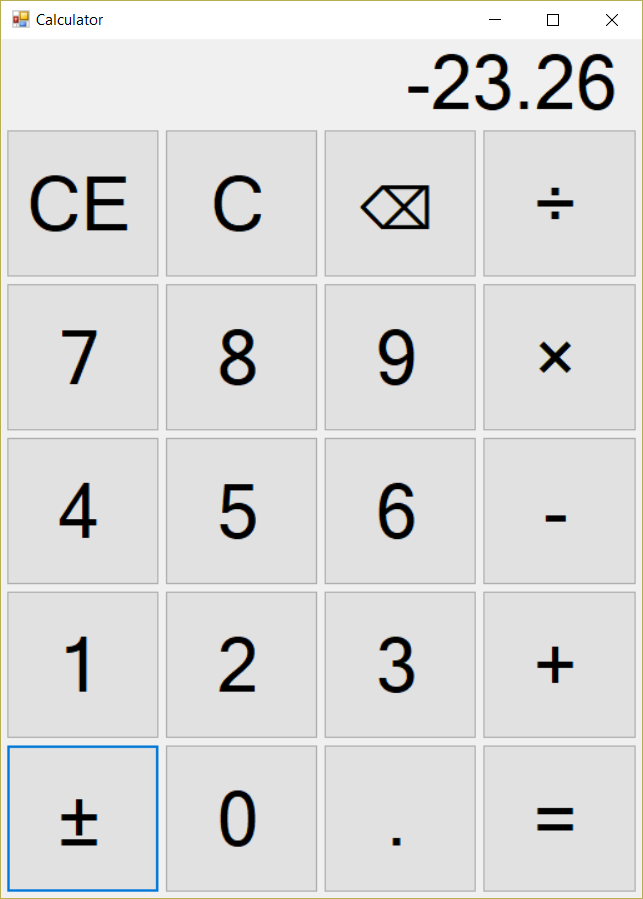
- A simple calculator
- Written in C#/.NET
- Solo
- Source on GitHub
Description and Responsibility
The goal of this project was to learn GUI programming with C#/.NET using WinForms by creating a simple calculator program.
Design Process
I began by implementing the layout of the calculator in the GUI editor for Visual Studio. This process, overall was pretty straight forward but required some research into how to keep a responsive design when the window resizes, and some trial and error in maintaining a design that did not break at larger sizes.
After implementing the GUI, I moved to adding interactivity to the buttons. First, I made it so the numbered buttons would record their values internally and display it on the output. After this, I added the ± support for toggling the sign of the current value displayed and the decimal point. Both were straight forward, but, required tracking the state of the current number to determine the correct operation of the button.
Next, support for the back button was added. I tried to emulate the functionality of the built-in Windows calculator as close as possible, which required handling different input cases separately. For instance, a number such as 123 can simply become 12, but, 1 need to become 0 and not a blank space. Similarly, if it is a single number but negative (i.e. -5), the number must become 0 and not -0 or just -.
After handling the back button, I implemented the operators and outputting the result. The way this was tracked was when a user has finished inputting a number and presses an operator (i.e. +) the number is stored in a list, the operation is also stored in its own separate list, and the output text box is reset. The user can then repeat this as many times as they like with other operators until they hit the equals button. This will then loop through both lists and perform the calculation in order of typed (not in correct mathematical order). The result will then be displayed and become the currently displayed number, ready for additional operations.
The final function implemented were the clear and clear entry button. This was straight forward as it only required either clearing the entire list of entries and operations or just clearing the currently selected entry.